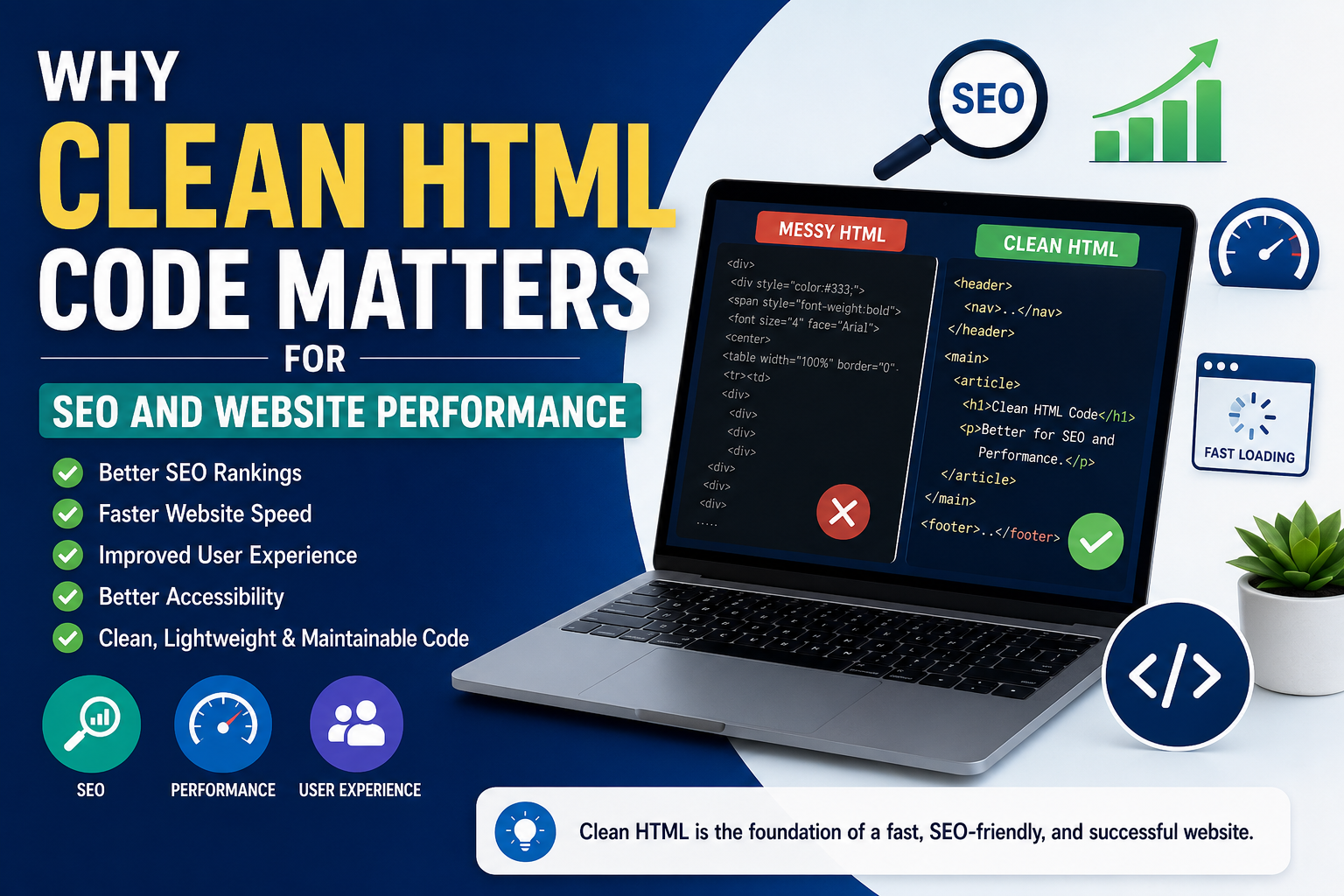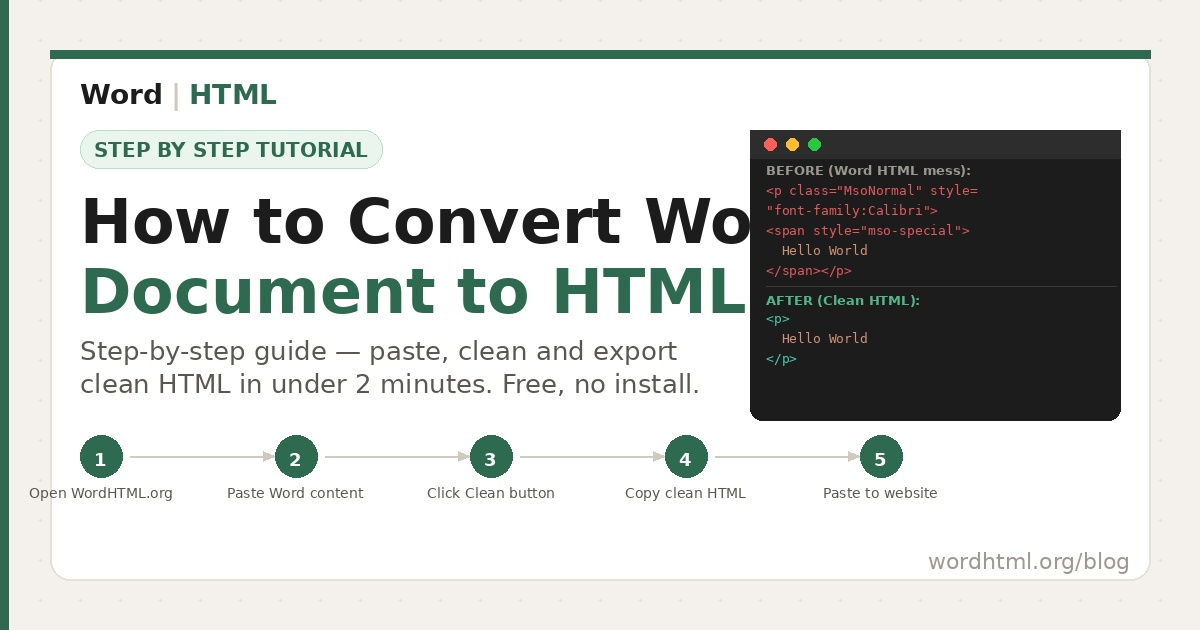
If you have ever copied content from Microsoft Word into a website, you already know the problem — messy HTML. Extra styles, unwanted tags, and broken formatting can make your website slow and hard to manage.
In this guide, you will learn how to convert any Word document into clean, SEO-friendly HTML in just a few steps using a free online tool.
You can also explore our WYSIWYG Editor for more optimization resources.
Why Word HTML Is So Messy
Microsoft Word is designed for documents, not websites. When you copy or export content, it adds unnecessary code such as:
- Inline styles on every paragraph
- Microsoft-specific (mso-) attributes
- Extra font and span tags
- Empty elements and unused divs
- Classes like MsoNormal (not useful for web)
This results in bloated HTML that can break your website layout and affect performance.
What You Need
- A browser (Chrome, Edge, Firefox, Safari)
- Your Word document
No downloads, no sign-up — everything works directly in your browser.
Step-by-Step: Convert Word to HTML
Step 1: Open the Tool
Go to WordHTML.org. You will see a two-panel editor.
Step 2: Paste Your Content
Copy your Word content (Ctrl + A ? Ctrl + C) and paste it into the editor. Formatting like headings, lists, and tables will stay intact.
Step 3: Check HTML Code
The right panel shows live HTML. It updates instantly as you edit content.
Step 4: Clean the HTML
Click the Clean button to remove unnecessary styles and Word-specific code.
Step 5: Copy the HTML
Copy the cleaned HTML or download it as a file.
Step 6: Paste into Your Website
Paste the code into your CMS like WordPress, Shopify, or Webflow using HTML mode.
Pro Tips for Better Results
Use Proper Headings
Always use Heading 1, 2, and 3 in Word. These convert into proper HTML tags like H1, H2, and H3, which help with SEO.
Tables Stay Clean
Tables are converted into proper HTML structure and can be styled easily using CSS.
Edit HTML Anytime
You can directly edit HTML code to add classes, styles, or attributes.
You can also try our HTML Tools for editing and formatting code.
WordPress Users Tip
Go to your post editor ? Click three dots ? Select Code Editor ? Paste your HTML ? Switch back to visual mode.
Common Problems and Fixes
| Problem | Solution |
|---|---|
| Formatting looks wrong | Use the Clean button to remove extra styles |
| Images not showing | Upload images separately and update URLs |
| Extra blank lines | Remove empty paragraphs or clean HTML |
| Special characters issue | Add <meta charset="UTF-8"> in your page |
| Table alignment issue | Apply CSS styling manually |
Why Use This Method?
- No installation required
- Completely free tool
- Clean and lightweight HTML output
- Live preview and editing
- Works on all devices
Check out more useful tools on our AI Tools page.
Conclusion
Converting Word documents into clean HTML is simple when you use the right method. Instead of dealing with messy code, you can generate optimized HTML in minutes.
This improves your website speed, SEO performance, and overall user experience.
Next time you publish content, use a clean HTML workflow for better results.